



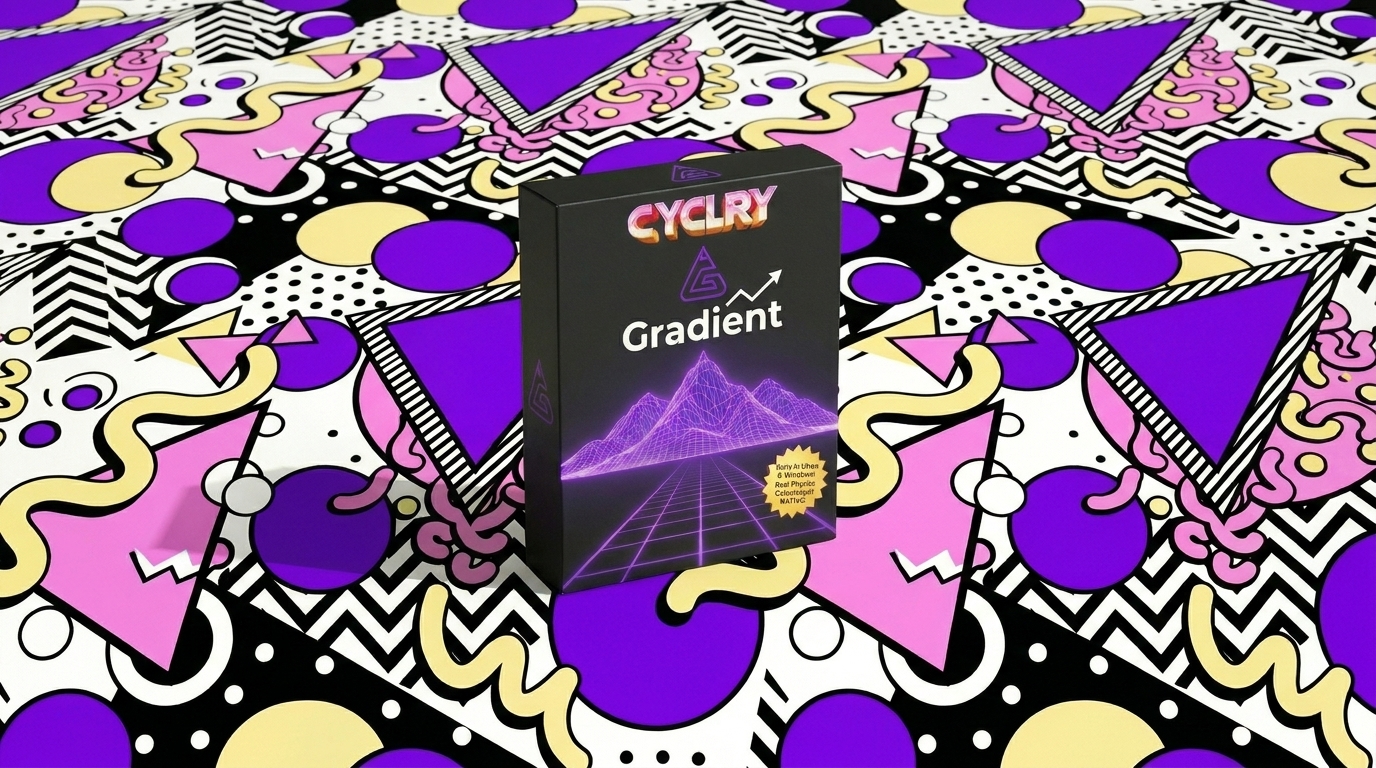


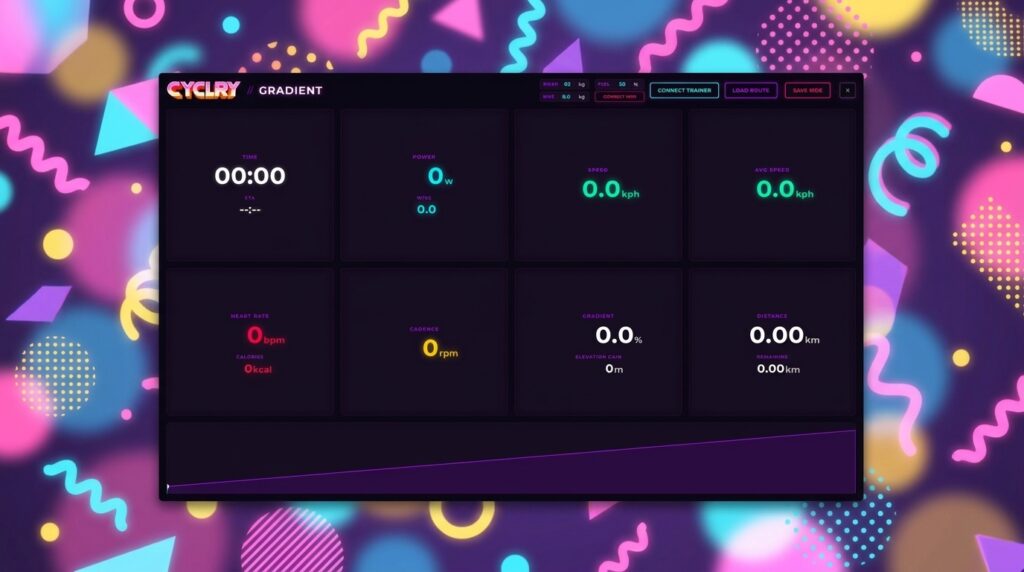
It’s an indoor training dashboard that gives you the essentials: all the datafields you need and a live route profile. It connects instantly and gets out of your way so you can ride. And at the end you can get a .tcx file if you absolutely must upload to Strava.
What Gradient Does:
- Instant Connectivity: It quickly finds and controls your smart trainer without a fuss.
- Custom Routes: Upload and ride your own routes on your terms. Grab a .GPX file. Upload it. Ride it with trainer control.
- Live Datafields & Course Profile: See everything you need to hit your goals, while you ride.
- TCX Export: Analyze your data or show off your time up your basement’s virtual Stelvio on Strava.
- HRM Pairing: Pair your HRM to your trainer, or to Gradient directly.
- It’s Free: We aren’t charging you to ride your own bike.
Version 0.7.1 is available now for free on Linux only. We’re targeting our next release to be V0.8.0 with Mac and Windows compatibility.
WAITING FOR WINDOWS OR MAC?
Drop your email below and we’ll transmit the binaries the second they clear testing.
V0.8.0 Roadmap:
- Mac and Windows support
- Auto-pause (save your average speed/ego)
- Improved Bluetooth multi-channel datastreams
- Responsive UI improvements
- Dynamic training zones
- Advanced customizable data smoothing

Why We Built It: We wanted to train indoors for hill climbs. Zwift and MyWhoosh don’t work on Linux, and anyway we were tired of how long it took to get riding on either of those (our time isn’t valuable, but it feels valuable when we’re watching the third fucking loading screen just to get into our bike ride). Plus, we’re too cheap for a subscription when we only want to ride up a hill.
How to Use Gradient
tl;dr? – Load route, connect your trainer, pedal. Hit save when you’re done.
Gradient is designed to be plug-and-play. Here’s every possible touchpoint:
FIRST TIME SETUP – Set Your Physics: Enter your Rider Weight and Bike Weight. Gradient calculates gravity, rolling resistance, and aerodynamic drag in real-time based on these numbers. This data is saved so you don’t have to set it every time (but can be edited later if you lose weight).
OPTIONAL – Adjust the Feel: The “Feel” slider scales the trainer’s resistance. At 100%, a 10% grade feels like a true 10% grade. It defaults to 50% (as does most of the industry), providing the climb experience without grinding in your smallest gear.
Load a Route: Click Load Route and select any standard .gpx file. Gradient will extract the elevation data and map it to your session. This is mandatory – you can’t just spin your legs in an infinite void.
Connect Hardware: Wake up your smart trainer and click CONNECT TRAINER. If desired, turn on your heart rate monitor and click CONNECT HRM. If your trainer allows it, you can pair your HRM with your trainer instead and still see the live data in Gradient.
Start Pedaling: The physics engine will take over.
Save Your Ride: Once you finish the route, click SAVE RIDE. Gradient will export a .tcx file packed with your power, heart rate, cadence, and the exact GPS coordinates of your GPX route, ready to upload directly to Strava.
Boring details follow below…
Installation Guide (Linux) • Riding with HRM • Using Other Sensors • What Datafields Are Supported • Seeing More Datafields • ANT+ Support (or lack thereof)
Installation Guide (Linux)
Option 1: Debian/Ubuntu (.deb)
This is the cleanest and most stable way to install Gradient. It automatically handles all system permissions and drops the app directly into your launcher.
- Download the Gradient Linux (.deb) file.
- Double-click the file to open it in your system’s App Center and click Install.
OR
Open your terminal in your download folder and run this command:sudo apt install ./gradient-sh_0.7.1_amd64.deb(The file name may change depending on version.) - Gradient is now in your application launcher!
Option 2: The Universal AppImage (Arch, Fedora, etc.)
If you are not on a Debian-based system, you can use the portable AppImage.
- Download the Gradient Linux (.AppImage) file.
- Right-click the file -> Properties -> Permissions -> Allow executing file as program.
- Double click to run.
- ⚠️ Ubuntu 22.04+ Users: Modern Ubuntu drops support for the tool AppImages rely on. If the file refuses to open, you must either install
libfuse2(sudo apt install libfuse2) OR run the app from the terminal with the sandbox disabled (./Gradient-0.7.1.AppImage --no-sandbox).
Riding with a Heart Rate Monitor
Gradient allows you to ride with a heart rate monitor two ways.
- HRM paired directly with your smart trainer
- HRM paired directly with your PC – hit the Connect HRM button
We did this because our HRM and trainer didn’t like talking to each other reliably. If yours do like each other, the first option is superior.
Can I Use Other Sensors?
You can pair power meter, cadence, speed sensor… if they’re part of your smart trainer. There’s no way to pair those separately. Hit Connect Trainer and it’ll all just work.
You can connect a HRM without using your trainer (you can also pair it directly to your trainer, as above). Just hit Connect HRM to find it.
If you need us to support something weird for some weird reason, let us know. You have to test it for us though.
What Datafields Are Supported?
Seeing More Datafields
On larger screens, some cards will display two paired datafields, such as ‘Time’ and ‘ETA’. The pairings are displayed above (in ‘What Datafields Are Supported’).
On smaller screens, the cards will display one datafield at a time. You can click on a card to flip it to the other half of the pair.
Does Gradient support ANT+ sensors and trainers?
Currently, Gradient exclusively supports Bluetooth Low Energy (BLE) connections.
If you are using modern equipment (like the Zwift Hub, Wahoo Kickr, Scosche Rhythm+, or Garmin Dual-Band straps), your hardware already broadcasts in both BLE and ANT+ simultaneously, and Gradient will connect seamlessly via Bluetooth.
If you have older, ANT+-only hardware, it will not connect to Gradient directly. You will need to use a dual-band piece of equipment or upgrade to a BLE-compatible sensor.


